Chat Bots
Slack
Employees at ScaDS.AI can talk to a Slack chat bot. Simply write "help" in a direct message to @ScaDS.AI Chatbot to get started.
Matrix
The ScaDS.AI Chat Bot is also available via Matrix. Because Matrix is a federated protocol, anyone having an account on any Matrix server could theoretically use the ScaDS.AI chat bot. However, we want to make it only available to members of TU Dresden. Hence, we provide access upon request.
To get access, please send an email to scadscat@tu-dresden.de with the following information:
Subject
ScaDS.AI Matrix Chat Bot Access
Body
Hi team,

Could you please give me access to the Matrix chat bot?

I work on [put_your_topic_or_interest] in [put_name_of_your_group_leader]'s group.

My TU Dresden Matrix account is: @[account_name]:tu-dresden.de

Best regards,
Manager Room
When we receive your request, we invite you to a Matrix room, the so-called manager room. As long as you are in the manager room:
- the chat bot accepts your invitations to rooms, including private/direct conversations or other group chats
- you can use Large Language Models (LLMs) via the chat bot
- you receive notification about availability of LLMs/functions (via the manager room)
- you can inform us about any malfunction (via the manager room)
- you can participate in any discussion about new functionality (via the manager room)
People who are in a chat room with the chat bot, but not in the manager room, can:
- use many of the (publicly available) LLMs
- use the chat bot in LLM off mode using specialized command syntax
Selected Functionality of the Matrix Chat Bot
Welcome Message
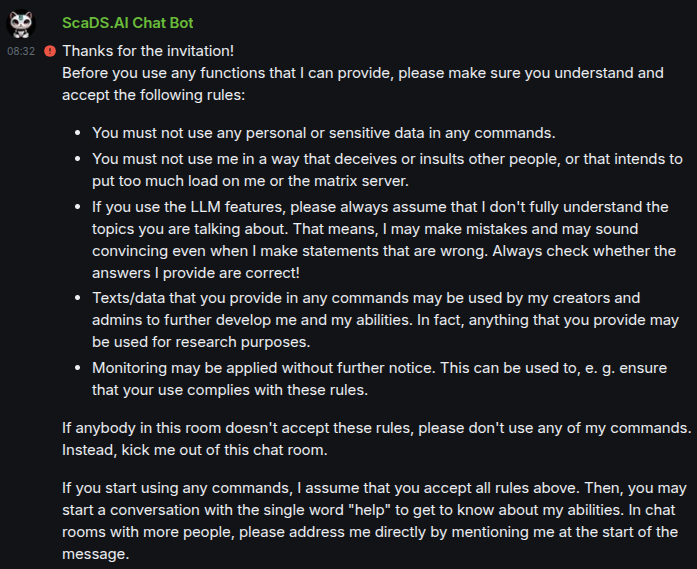
When you first invite the chat bot to a room, it will show a welcome message such as the following:
Help
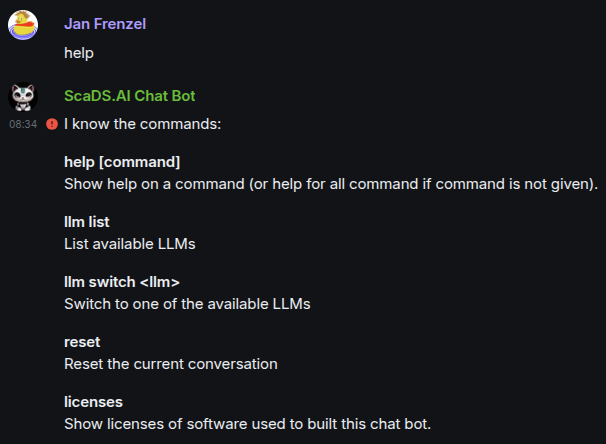
Following the suggestion in the welcome message, one can use the command help to see available commands:
Note
The output of command help depends on the selected LLM, e. g., General-LLM allows to set parameters such as prompt and temperature, whereas LLMs built for a specific purpose don't provide these options. When LLM is switched off, a different set of commands is available.
Selecting an LLM
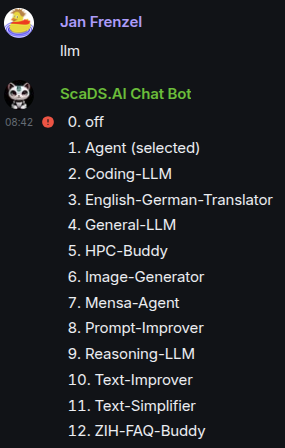
Let's use the command llm list (or short: llm) to see available LLMs and which LLM is currently used:
Agent
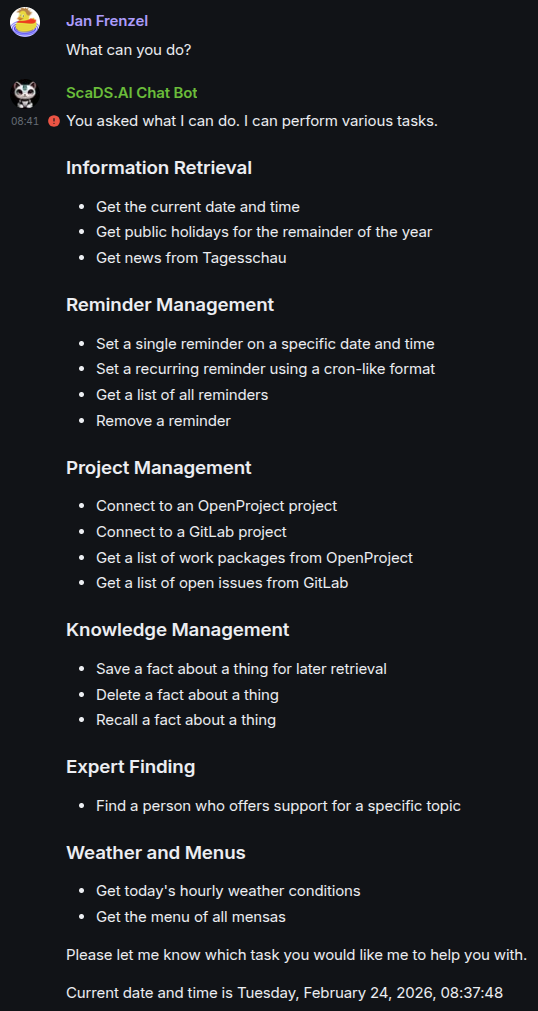
The Agent, which is selected in this example, is a LLM that can use tools. These tools correspond to the commands available, when you select LLM off. We can ask the Agent to give a short summary about all its functionality using a natural question such as What can you do?. The agent will start typing an answer:
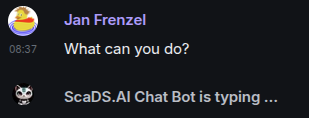
After some time, the agent will give an answer about its capabilities:
Generating an Image
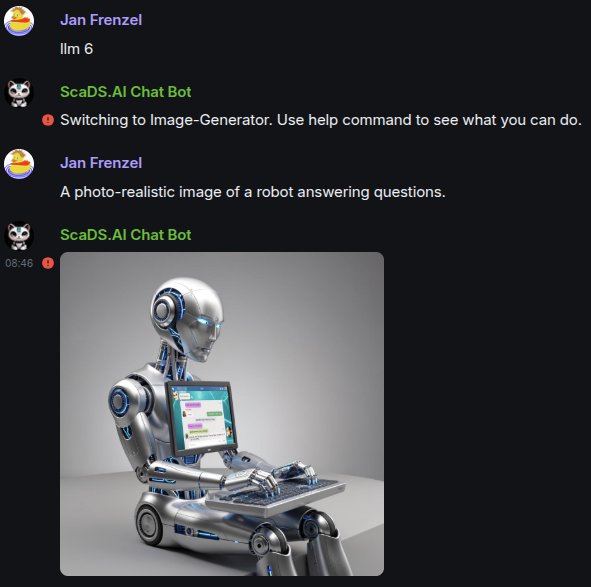
It is possible to generate images using the LLM Image-Generator. The chat bot will respond to your message with an image. The better you describe the image you want to have, the better will be the result.
Asking Questions about an Image
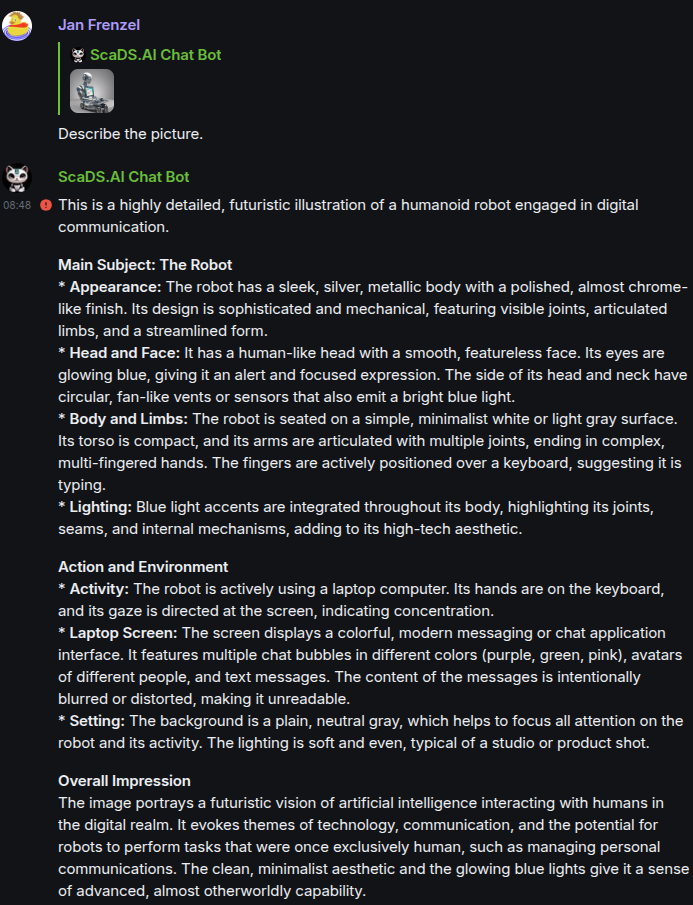
You may use Matrix's reply functionality to ask a question about an image or get a description of an image:
Note
The chat bot only accepts questions to the image uploaded last. If you reply to an older image, it does not do anything.
Editing an Image
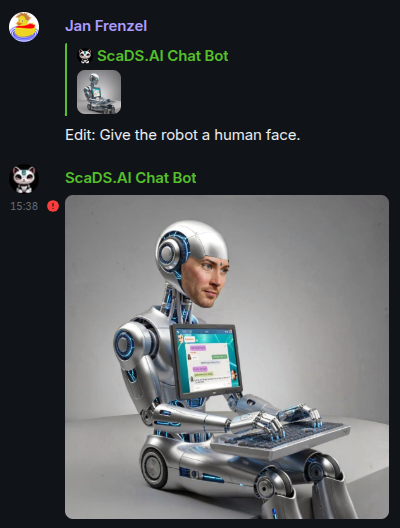
You may use Matrix's reply functionality also to edit an image:
Note
The chat bot only edits the image uploaded last. If you reply to an older image, it does not do anything.
Asking questions about a PDF
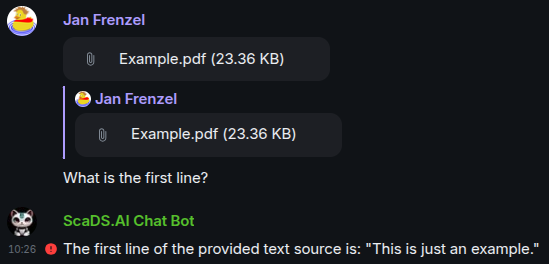
If you upload a PDF to Matrix and then use the reply functionality, you can ask questions about the PDF.
Note
The chat bot does not store the PDF. It only stores a reference to it to download and process it on demand (when you use the reply functionality). Hence, it only works with the latest PDF uploaded. If you reply to an older PDF, it does not do anything.